Satellites

This is a sky view of all navigation satellites that your device receives. This view is good in cases when you don’t have a GPS location and you don’t know why.
GPS receivers interpret signals coming from satellites that revolve the earth: besides the American GPS, today's devices also receive GLONASS, Galileo, BeiDou, QZSS and others. Before a receiver emits a location (also called a GPS fix), it must receive signals from at least 4 satellites. There are many things that can prevent the receiver from seeing the satellites. The lower the satellite is above the horizon, the longer its signals travel through the atmosphere, so satellites high above the horizon usually have better signals. Thick clouds, especially thunderstorms, can weaken the signal and so do windows, trees, vehicles and buildings.
The GPS antenna built into your Android device also plays an important role. Some devices work better than others.
The satellite view helps you understand the quality of the signal you are currently receiving and gives you an idea if and how you can take measures to improve it.
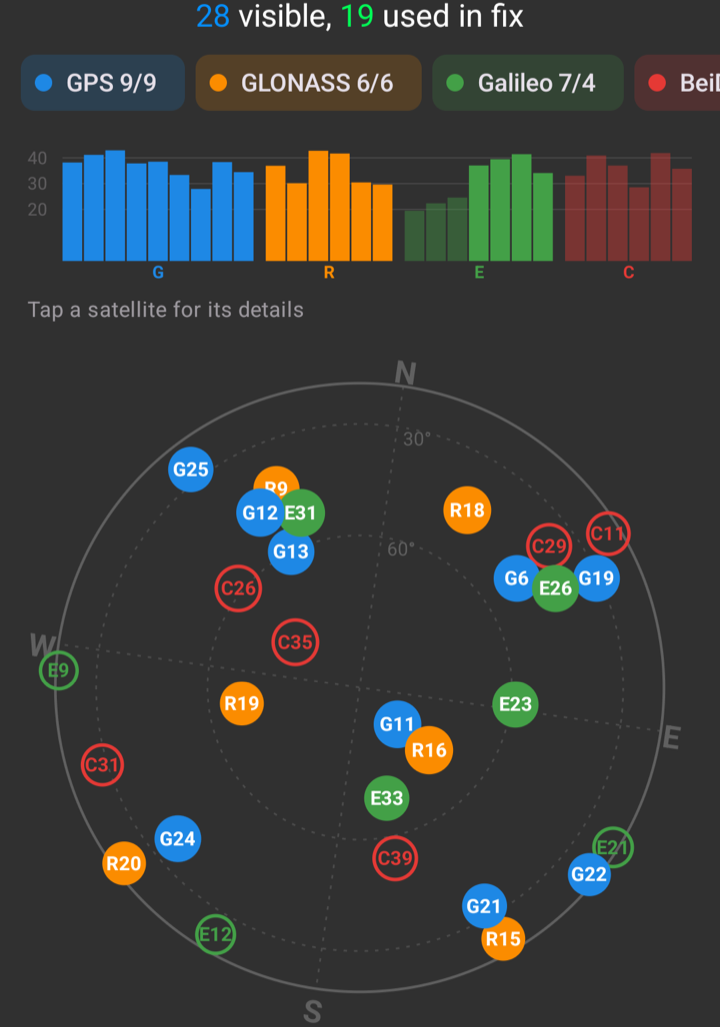
The view is a top view of the sky above you. It turns with your device, so it matches the directions around you. Satellites on the outer circle are on the horizon; the dotted circles are 30° and 60° above it.
Each satellite is a disc at its position, colored by its system and named the way receivers do, with the system's letter and the satellite's number, such as G12 or E24. A filled disc is used in the current fix, a hollow one is received but not used, and a grey one sends no signal. The stronger the signal, the larger the disc.
Satellites can be in view but not used for the GPS fix. This can happen if the signal quality is not good enough, usually because the signal of the specific satellite is too weak.
The chips above the sky name each system with how many of its satellites are received and how many are in the fix; tap one to hide or show its satellites. The bars show every satellite's signal strength in dB-Hz, grouped by system. Tap a satellite or its bar for its details: its signals and bands, where it stands and whether it is in the fix.
The information lines at the top show your current position and the accuracy of the fix, if there is one, and how many satellites are received and how many of them are used in the current fix.
Android shares satellite data only with apps that have access to your precise location. If you allowed only approximate location, no satellites are shown, and a hint lets you switch precise location on.
Getting a Fix
📱 Get a GPS fix
- Check that location is switched on for your device, and that GPS Essentials may use your location, with Precise location switched on.
- Go outdoors, clear of buildings and trees, with a clear view of the sky.
- Open the Satellites screen. There should be at least 6 filled discs with strong signals.
- Wait. Under bad conditions, especially when you switch on the device at a new location or when there is no cell network to estimate your location, the first fix can take up to 20 minutes.