Tracks

Tracks are records of your trips. When you start recording, GPS Essentials continuously saves locations to a stream. You can review the track later, see it on a map, analyze it as a chart, or export it.
GPS Essentials keeps recording while you use other apps or the screen is off. How often a location is stored depends on Tracking Update Interval in Settings. You can export these tracks to a KML or GPX file and import them into other apps.
GPS Essentials has some built-in features to analyze tracks. For example, you can see the altitude and speed over time and distance using the chart, and the Track card shows times, length, altitudes and speeds.
Track Control
There are many ways to start, pause and resume recording.
Each of them asks for permission to show notifications and to use your location, and then to use it all the time (Allow all the time). Recording starts only with location access all the time: without it, recording cannot continue after Android has closed GPS Essentials in the background. Notifications are not required, but without them you are not told when recording stops.
📱 Start tracking to a new stream
- Tap on Tracks to see a list of all existing tracks.
- Swipe from the left screen edge to the right to open the navigation drawer.
- Tap on the record button in the side bar to create a new track and immediately start recording into it.
You can also tap the plus button in the stream list, open the Track tab and tap Start.
📱 Start tracking to an existing track
- Tap on the track in All Tracks or All Streams
- Tap on the record button on the track card
- If the track card is hidden, add it by tapping on the plus button and opening the Cards tab
📱 Resume tracking
- Tap and hold the track in All Tracks or All Streams
- Choose Resume
You can also open the track, select the tracking category to resume in the category selection, and tap the record button on the track card.
While Recording
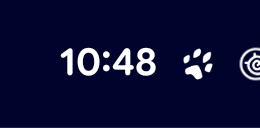
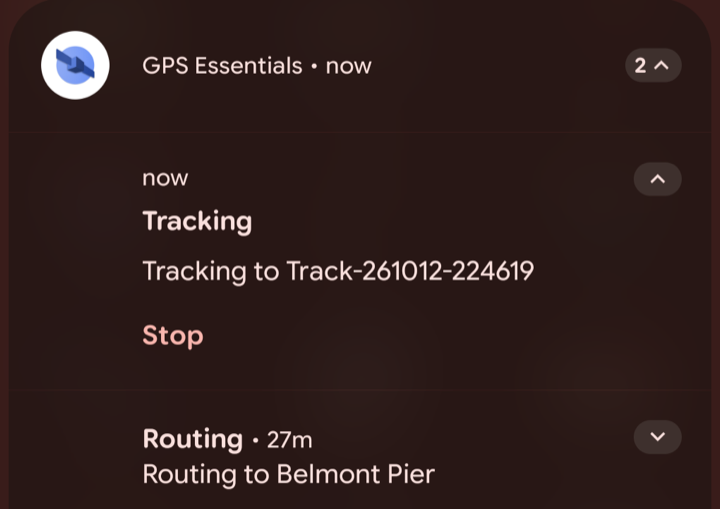
A paw icon in the status bar shows that GPS Essentials is recording, and a Tracking notification shows which track you are recording to. Tap it to open the track, or tap Stop to end recording. In the navigation drawer, the record button turns into a stop button, and the Tracks list shows the track on top under Recording Track.
The notification shade contains an element like the following that represents your recording.
Only GPS locations are recorded, unless you turn off Track only GPS locations in Settings. With Drop stationary locations on, nothing is stored while you are not moving. If nothing is recorded, see the Satellites chapter for how to get a GPS fix.
You can only record to one track at a time. When you are already recording to a track and start or resume recording, the current recording will stop.
💡 Keep an eye on your remaining battery while recording. Depending on the tracking interval, recording drains your battery within a few hours, because it keeps the GPS on.
Stop Recording
Tap the stop button in the navigation drawer or on the Track card, or tap Stop in the notification.
GPS Essentials notes each start and stop in the Messages inbox: Track Recording Started, Track Recording Resumed and Track Recording Stopped. Each message links to the track. The stop message also gives the length, the duration and the altitude gain.
Recording stops without you asking when the battery is low, when Android does not allow GPS Essentials to keep running in the background, or when the permission to use your location is missing. A Track Recording Stopped notification then gives the reason and stays until you dismiss it. When recording can continue, it has a Resume button, which continues the same recording in the same category of the track. You also get an unread message in Messages and, if GPS Essentials is open, a short notice on the screen. If the location permission is missing, there is no Resume: allow location access, then start again from the Track card.
The Track Card
The Track card shows information about a track and controls recording and playback:
- Start Time and End Time: the first and the last recorded location.
- Duration and Length: how long and how far.
- Altitude: the lowest and the highest altitude.
- Top Speed and Average Speed.
The record button continues recording into this track; while this track is being recorded, it changes to stop. If it is shown in a warning color, GPS Essentials may not use your location all the time, which recording needs. The play button plays the track back: GPS Essentials uses the recorded locations instead of the GPS, so maps and the dashboard follow the track. Tap it again to increase the playback speed. The stop button stops playback.