Google Maps
Shows your position, your target and your waypoints on a Google map.
The map shows the Waypoints stream, or the stream you opened the map from, your starred streams and the route you are navigating. It has a different layout in horizontal and vertical oriented screens and features a map and a dashboard. The dashboard works exactly as the main dashboard and it shows the same widgets. Please refer to the Dashboard chapter for a detailed description.
While this screen is open, GPS Essentials keeps your location up to date, so the arrow follows you even when no location widget is shown.
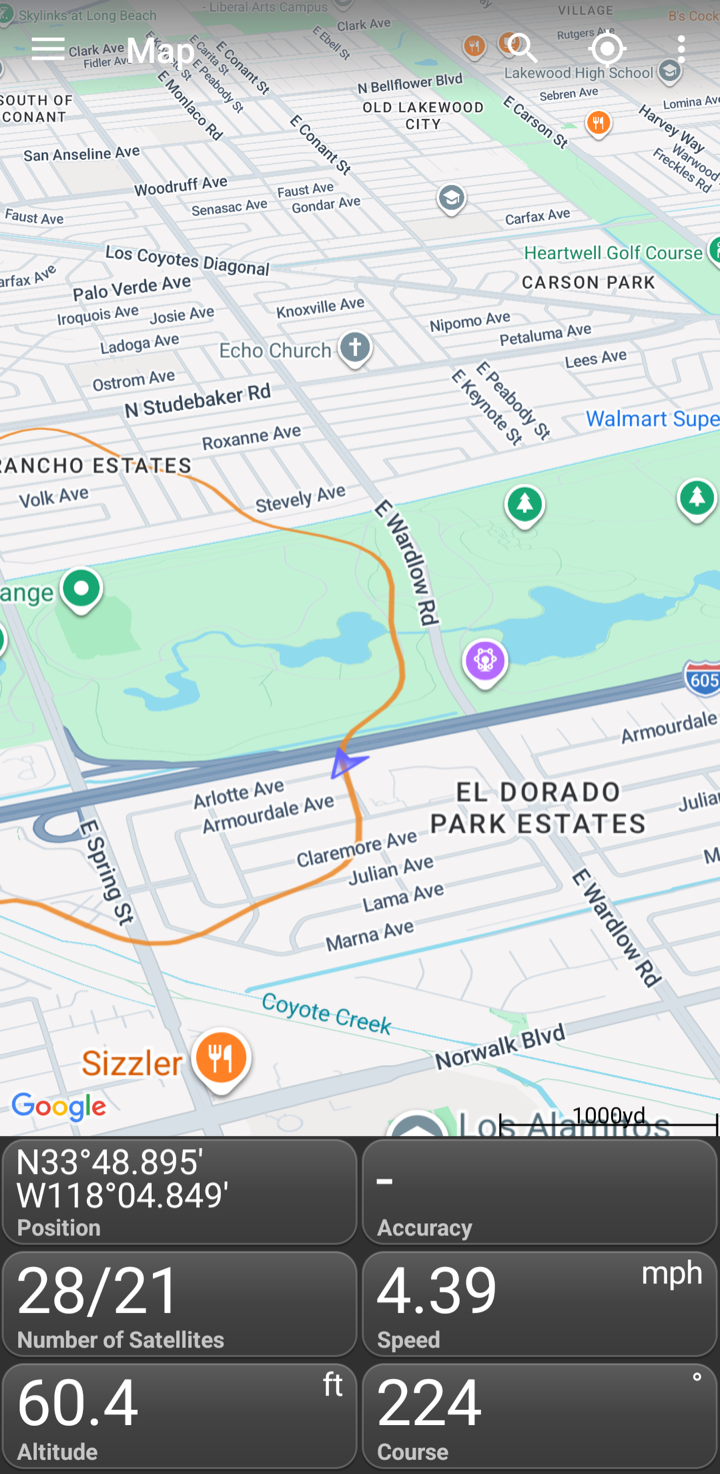
You can adjust how much space you want to use for the map and the dashboard by dragging the slider up and down (or left and right on horizontal screens). The slider appears when you tap on the screen near the separation between the map and the dashboard. You can drag the slider all the way down until the dashboard is completely hidden and you can also drag it all the way up to hide the map completely. Doing so can make it hard to find the slider again, remember that the map is always above the dashboard, even when it is hidden.
The Map
Drag the map to move it. Pinch to zoom in and out.
| Command | Description |
|---|---|
| Search | Finds an address or place in the visible area. It uses the Geocoder in Settings. |
| Current Location | Moves the map to your position and keeps following you until you move the map yourself. |
| Map Type | Switches between Normal, Satellite, Hybrid and Terrain. |
| View | Turns Traffic, Indoor, Buildings and the Compass on the map on or off. |
| Add Waypoint | Adds a waypoint (see below). |
| Clear Target | Stops navigation. |
| Zoom Leg | Shows your position and your target together. Without a target, it centers the map on you. |
| Find Contact | Lets you pick a contact and shows their address on the map. |
| Add Widget | Adds widgets to the panel below the map. |
Waypoints
The map shows the waypoint icons at their location. If you tap on the icon, a popup menu appears to run operations on this waypoint:
| Operation | Description |
|---|---|
| Mark | Marks this waypoint, so that you can copy or move it to another stream. |
| Navigate | Makes this waypoint your target and starts navigation. Please refer to the Routes chapter for a detailed description of navigation. |
| Edit Details | Opens the waypoint editor. Please refer to the Streams chapter for a detailed description. |
| Move | Relocates the waypoint. Tap onto the map to move the waypoint, or select Add Waypoint to move it to your current location. If you know the coordinates of the waypoint, use the waypoint editor instead. |
| Delete | Removes the waypoint. |
To add a new waypoint, select Add Waypoint. Then tap on the location on the map to create a waypoint there. If you want to create a waypoint at your current location, select Add Waypoint again.
Google Maps needs a connection to load its maps. For maps that you can use offline, see Portable Maps.