Compass
An orienteering compass that shows north, the direction to your current target, the tracking angle and a few widgets from your dashboard.
The widgets are below or on the right side of the compass, depending on the orientation of the device. They work exactly as on the main dashboard and show the same widgets. Please refer to the Dashboard chapter for a detailed description.
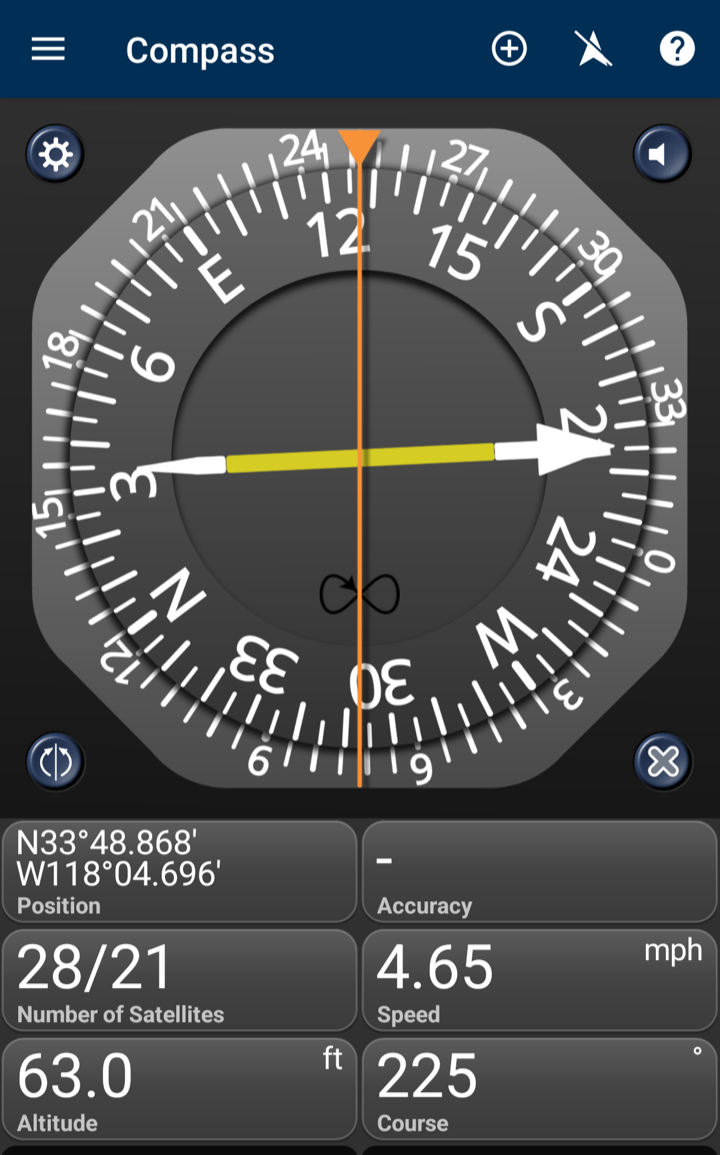
The compass features a rotating scale, an adjustable outer ring and a direction indicator. Having a rotating scale means that there is no compass needle, but the scale is rotating so that N always points north. You read out the current heading angle at the top end of the thin orange vertical line.
For best results, hold the phone flat, as if it were lying on a table, with the screen facing up. Keep away from magnets and electrical sources, and don't use covers that have a magnetic latch. In a vehicle, the phone is often mounted upright and the compass is unreliable. The Clamp Heading setting in Settings uses the direction you are moving in instead.
Buttons
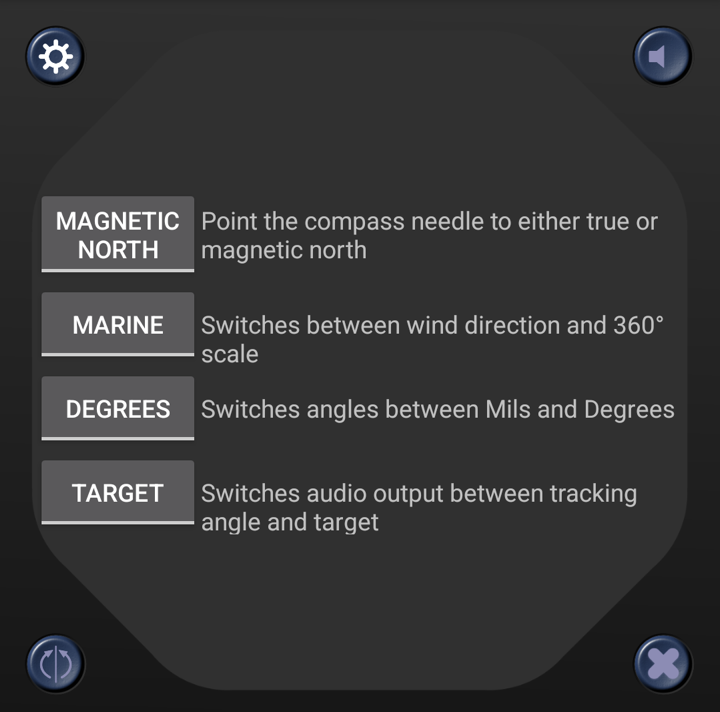
- The button at the top left turns the compass over to its options; tap it again to turn it back. You can point the compass to magnetic or true north, show a trekking or a marine compass, show angles in degrees or mils, and choose whether audio guides you to the tracking angle or to the target. With the marine compass, the tracking angle is the wind direction and the tracking scale shows the relative wind direction.
- The button at the bottom left aligns the tracking angle with the direction you point the phone in (see below).
- The button at the top right turns audio output on or off (see below).
- The button at the bottom right opens your waypoints so you can pick a new target. When you have a target, the button shows its icon and an arrow on the compass points to it.
The menu offers Add to add widgets below the compass, Clear Target to stop navigation, and Calibrate, which shows how to calibrate the compass.
Tracking Angle
The tracking angle lets you mark any direction on the compass. It is shown by the outer ring. The ring turns with the compass, but you can change the angle between the two.
If the direction you want to mark is something in view, such as a landmark, point your device in its direction and hold the button at the bottom left. While you hold it, the tracking angle follows the direction you point in.
To change the tracking angle by hand, drag the outer ring. For example, if you know today's sunset will be at 278°, turn the ring until its zero mark is at that direction.
Audio Output
When you tap the audio button, a sound guides you in the direction of your tracking angle or your target. You choose which in the compass options.
If there is nothing to guide you to, a warning sound plays. This happens when audio is set to the target and you have no target or no location fix.
Otherwise, groups of two tones with different pitch sound. If the second tone is higher than the first one, turn right. If it is lower, turn left. As a rule of thumb, turn towards the higher pitch. As you turn towards your target, the interval between the groups will decrease and the pitch will rise.
Audio stops when you leave the Compass screen.
Calibration
📱 Calibrate the compass
If the compass does not point the right way, calibrating it might help. Stay as far away from magnetic fields as you can, and keep the Compass screen open while you calibrate. Calibration does not work when the compass is not showing.
- Hold the phone in front of you and move it slowly in a figure 8 a few times, turning it as you go.
- If that does not help, put the phone on a flat surface with the display facing up and rotate it three full times around the axis pointing up.
- Then rotate it three full times around the axis pointing away from you.
- Then rotate it three full times around the axis pointing to the right.
Move the phone slowly; 5 seconds per full rotation is OK. The direction of rotation doesn't matter.