Tags

You use tags to structure your waypoints, pictures and streams. Tags are words that you can attach to any one of these elements. The Tags list then groups the elements by your tags.
By means of tags, you can structure your data. Because tags can be assigned to different kinds of elements, tags make it easy to bind together different element types, such as a stream with a route and the waypoints and pictures along it.
Tags should be very short terms that uniquely describe an aspect of the elements that you want to attach to them. Think of a tag as a label that you can attach to everything, but as opposed to a label, you can attach the same tag to many elements. E.g. if you are hiking, you will have many waypoints that denote camps. You can now add the tag Water to those waypoints that have water supply. When you open the Water tag later, you’ll see a list of all camps that have water supply.
Adding and Removing Tags
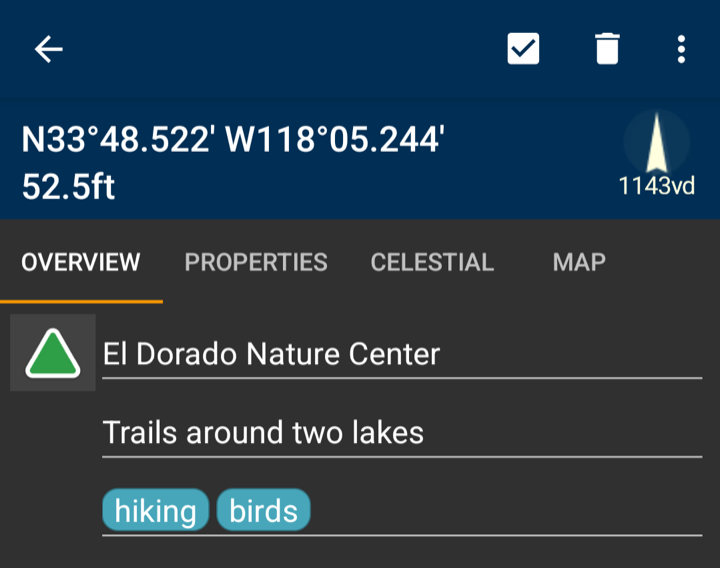
You cannot add tags in the Tags list. To add tags, type one or more words, separated by spaces, into the Add tags field of the element. Each word becomes a tag.
- For a waypoint or a picture, use the tags field on the Overview tab of Edit Waypoint, which also edits pictures.
- When you create a waypoint, use the tags field on the Waypoint tab of Add Elements.
- For a stream, tap the description or the tags on its Info card in the stream view.
To remove a tag, delete the word from the field.
The Tags List
Open it with Tags on the start screen or in the navigation drawer. It shows an alphabetically ordered list of all your tags. Tap a tag to see the elements that have this tag. Tap an element to open it.
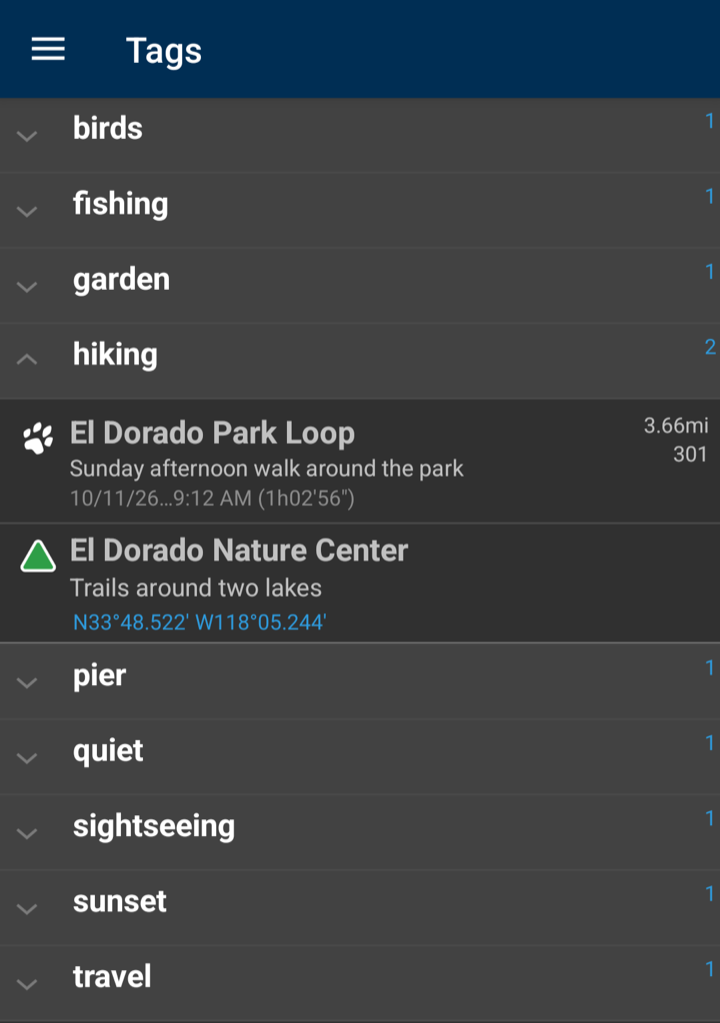
Tap and hold a tag and choose Export to save all elements with this tag as a file. Tap and hold an element and choose Export to save just that element, or Show on Map to see it on the map.